Setup & User Guide

Multiverse Profiles — Android App

The complete guide to installing, connecting and using the free Vremsoft Multiverse Profiles app, slide by slide. Prefer watching? Play the narrated video.
Title slide — Vremsoft LLC Multiverse Profiles Android App
Slide 1 — Title. Vremsoft LLC Multiverse Profiles, Android app setup & user guide.
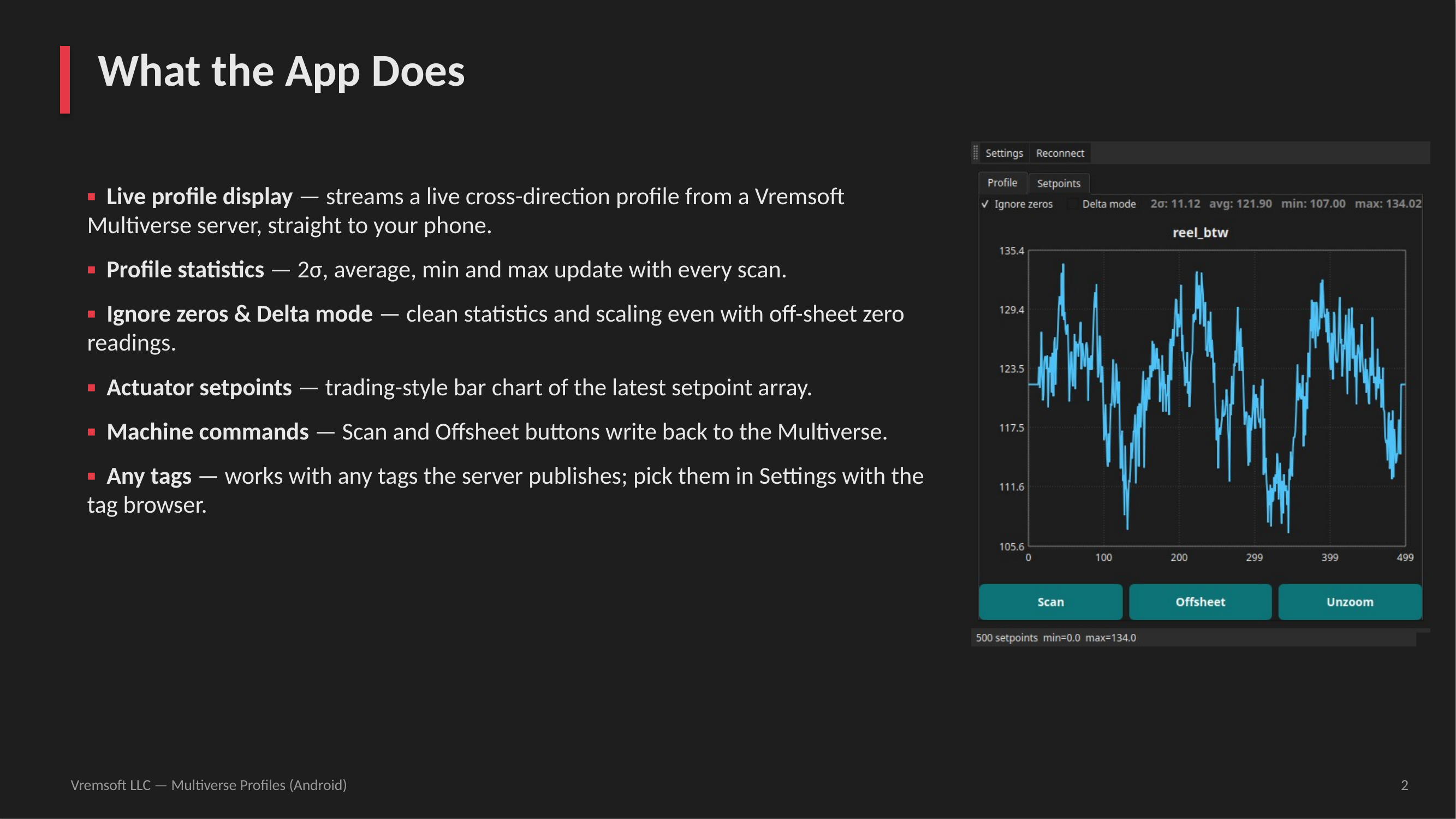
What the app does — live profile, statistics, setpoints, commands, any tags
Slide 2 — What the app does. Live profile from a Vremsoft Multiverse server, 2σ/avg/min/max stats, actuator setpoint bar chart, Scan/Offsheet commands, works with any tags.
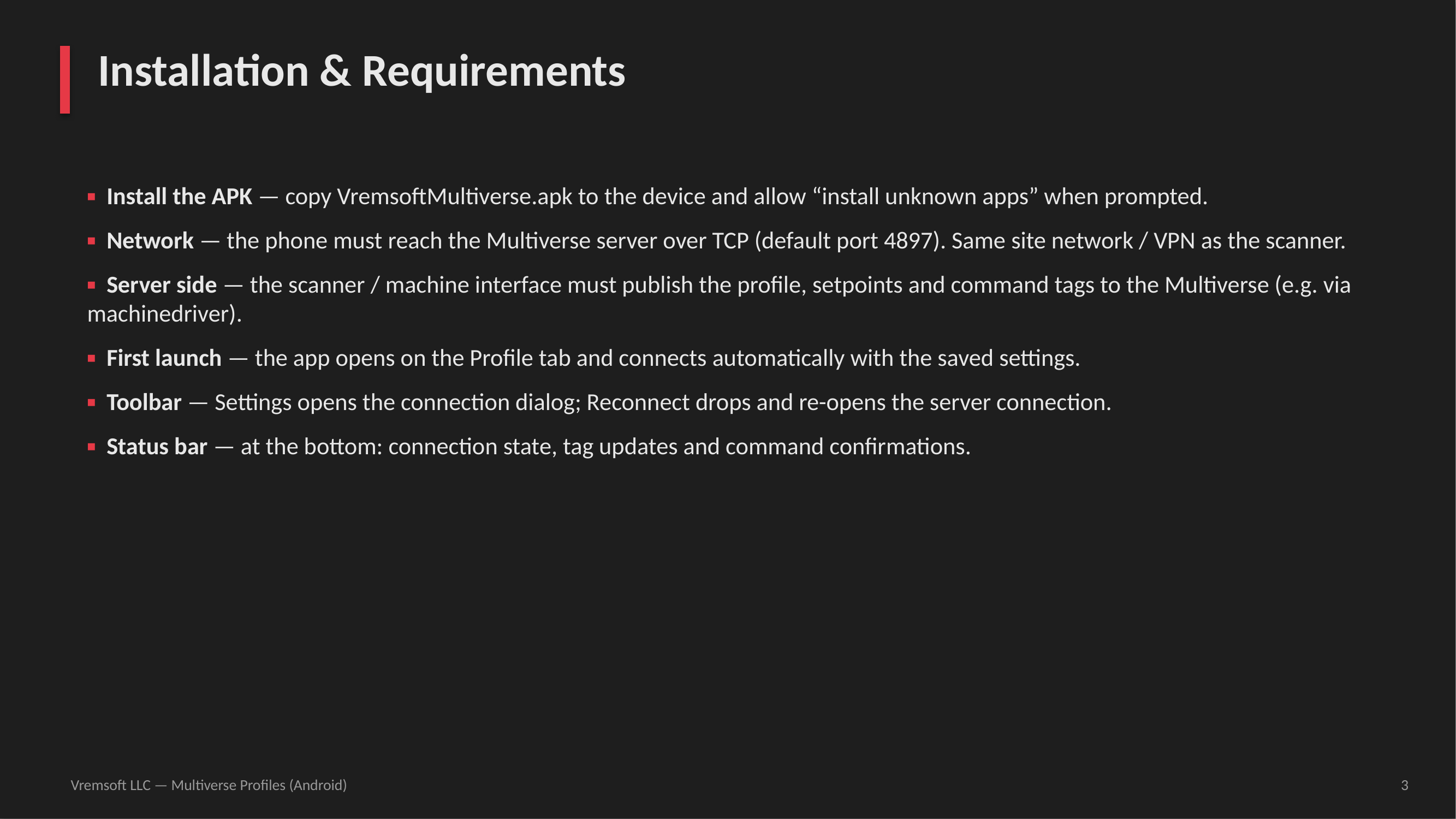
Installation and requirements
Slide 3 — Installation & requirements. Install the APK, network access to the Multiverse server (port 4897), server-side tags, first launch and toolbar.
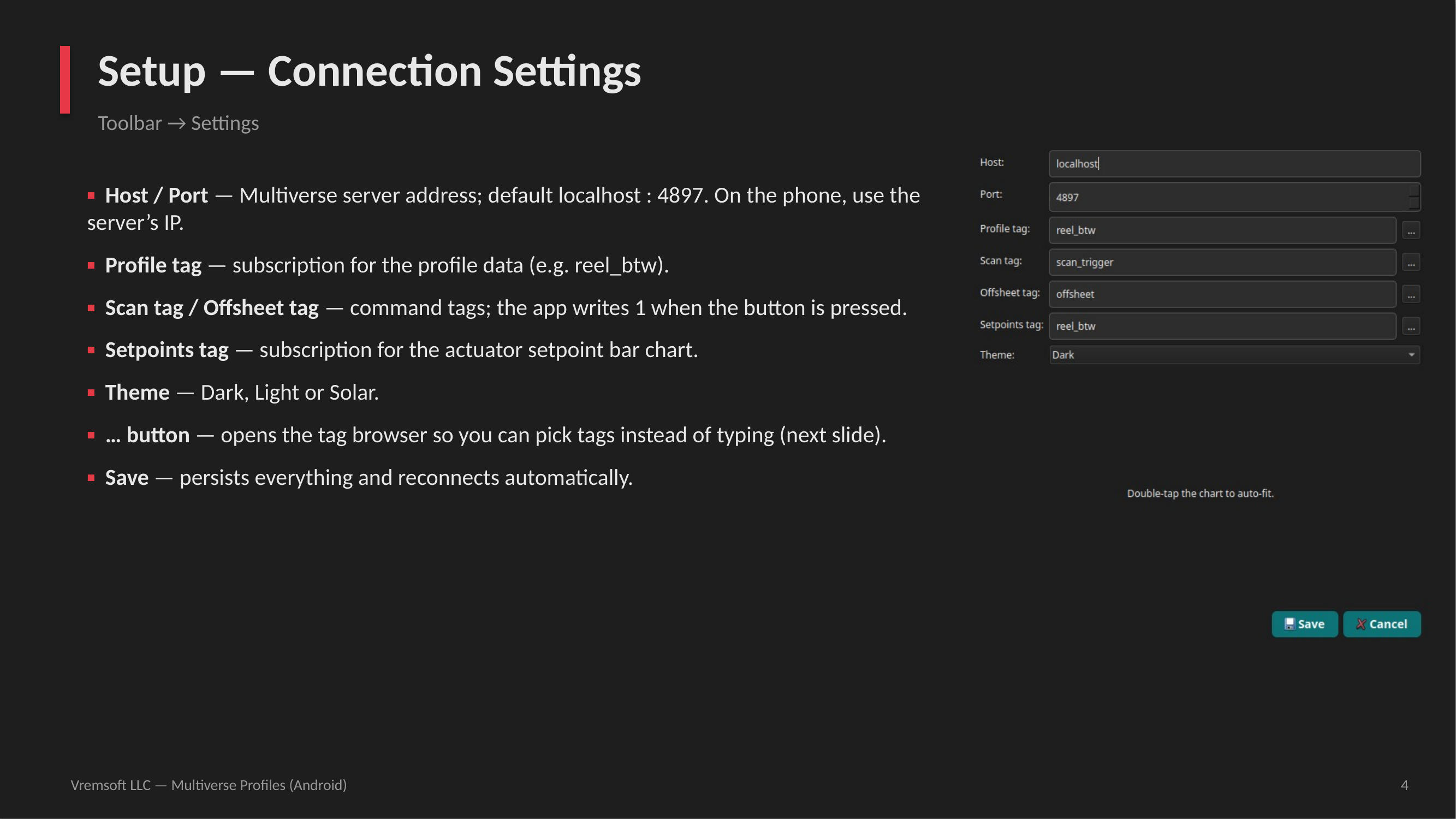
Setup — connection settings dialog
Slide 4 — Connection settings. Host/port, the four tags (profile, scan, offsheet, setpoints), theme, the “…” tag-browser button, and Save.
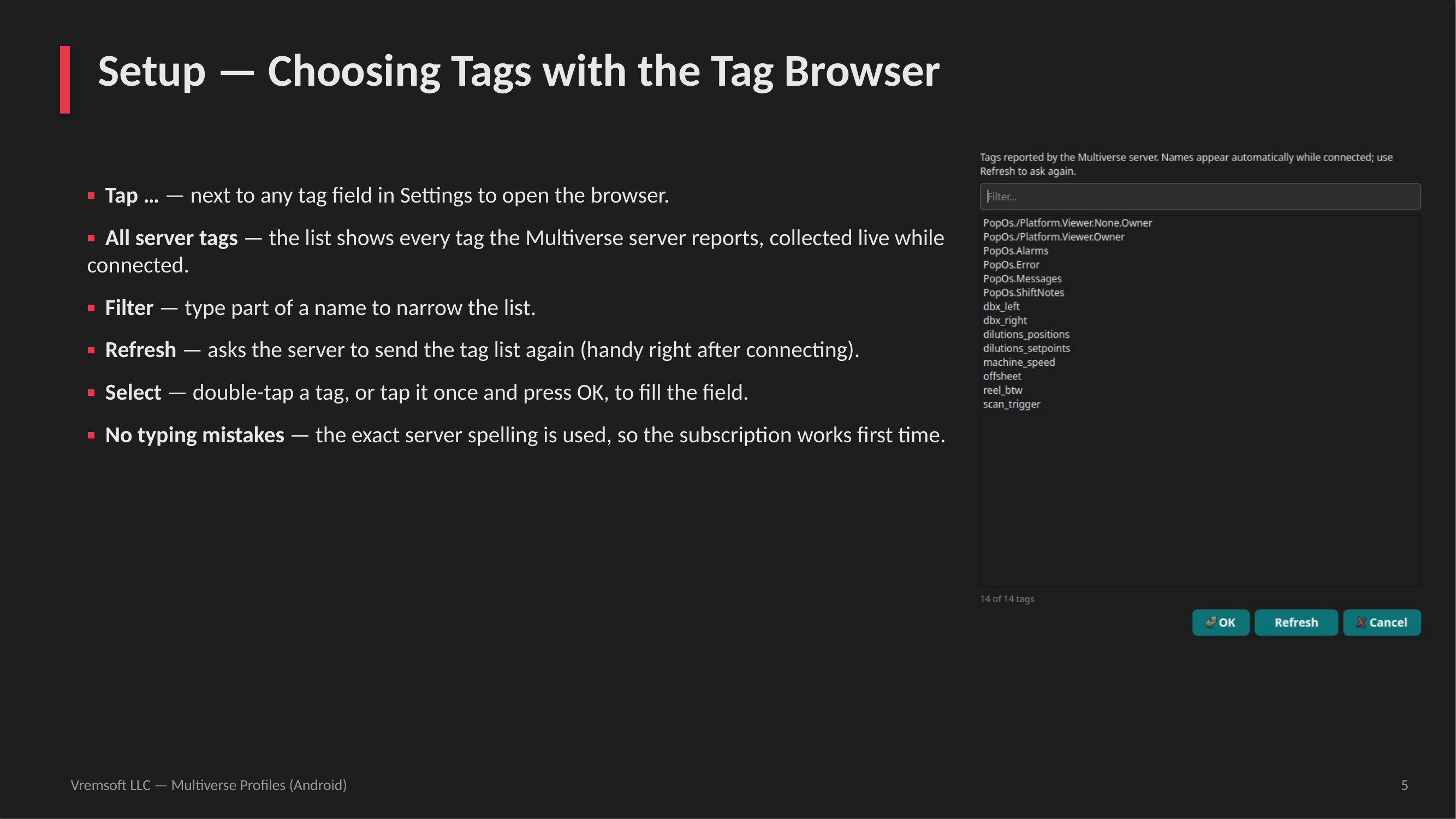
Setup — choosing tags with the tag browser
Slide 5 — Tag browser. All server tags collected live, filter, refresh, double-tap to select — no typing mistakes.
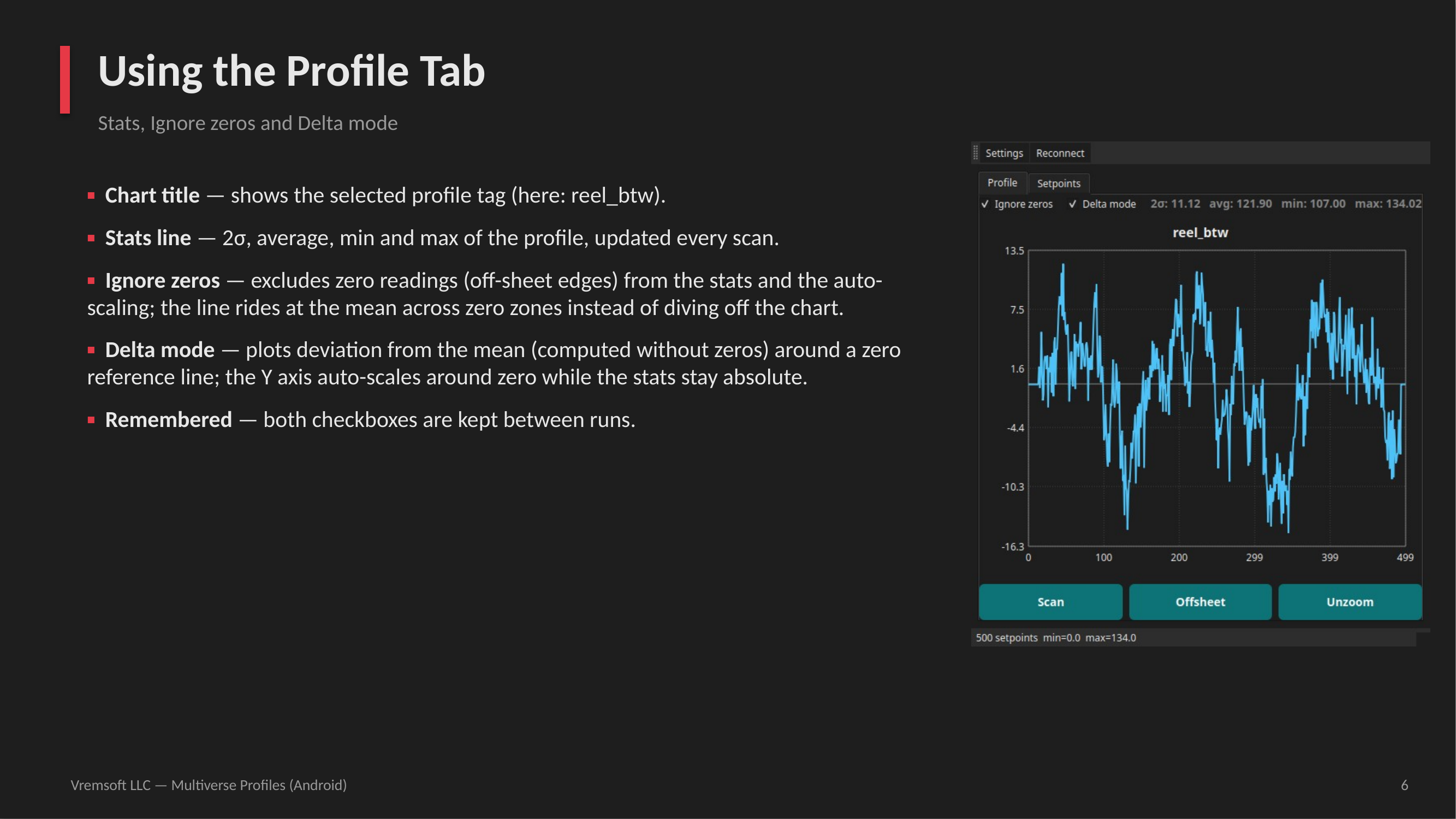
Using the profile tab — stats, ignore zeros, delta mode
Slide 6 — Profile tab. Stats line, Ignore zeros (stats & scaling without zero readings), Delta mode (deviation from the mean, stats stay absolute).
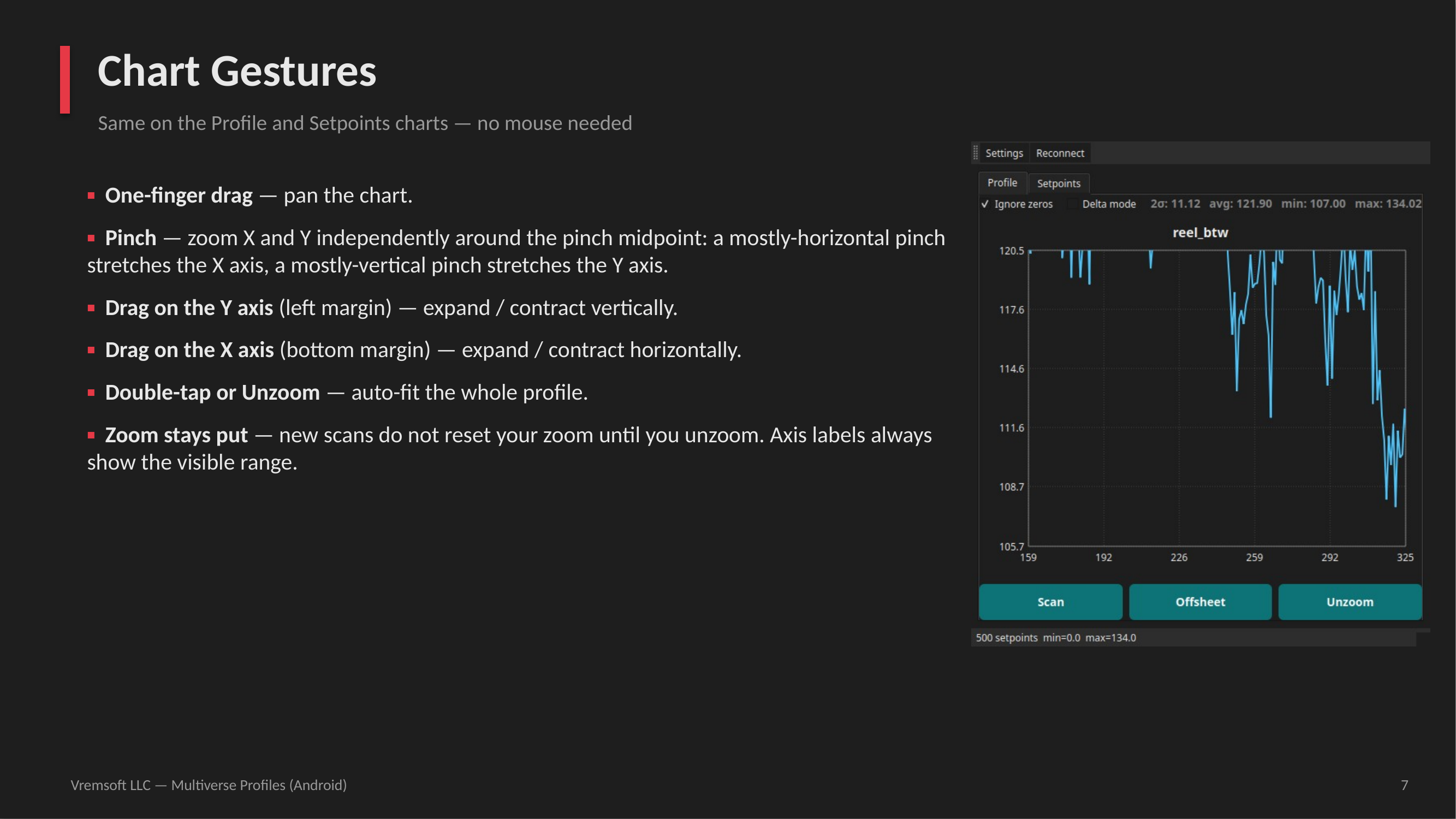
Chart gestures
Slide 7 — Chart gestures. Drag to pan, pinch to zoom X/Y, axis-margin drags, double-tap or Unzoom to auto-fit; zoom stays put across scans.
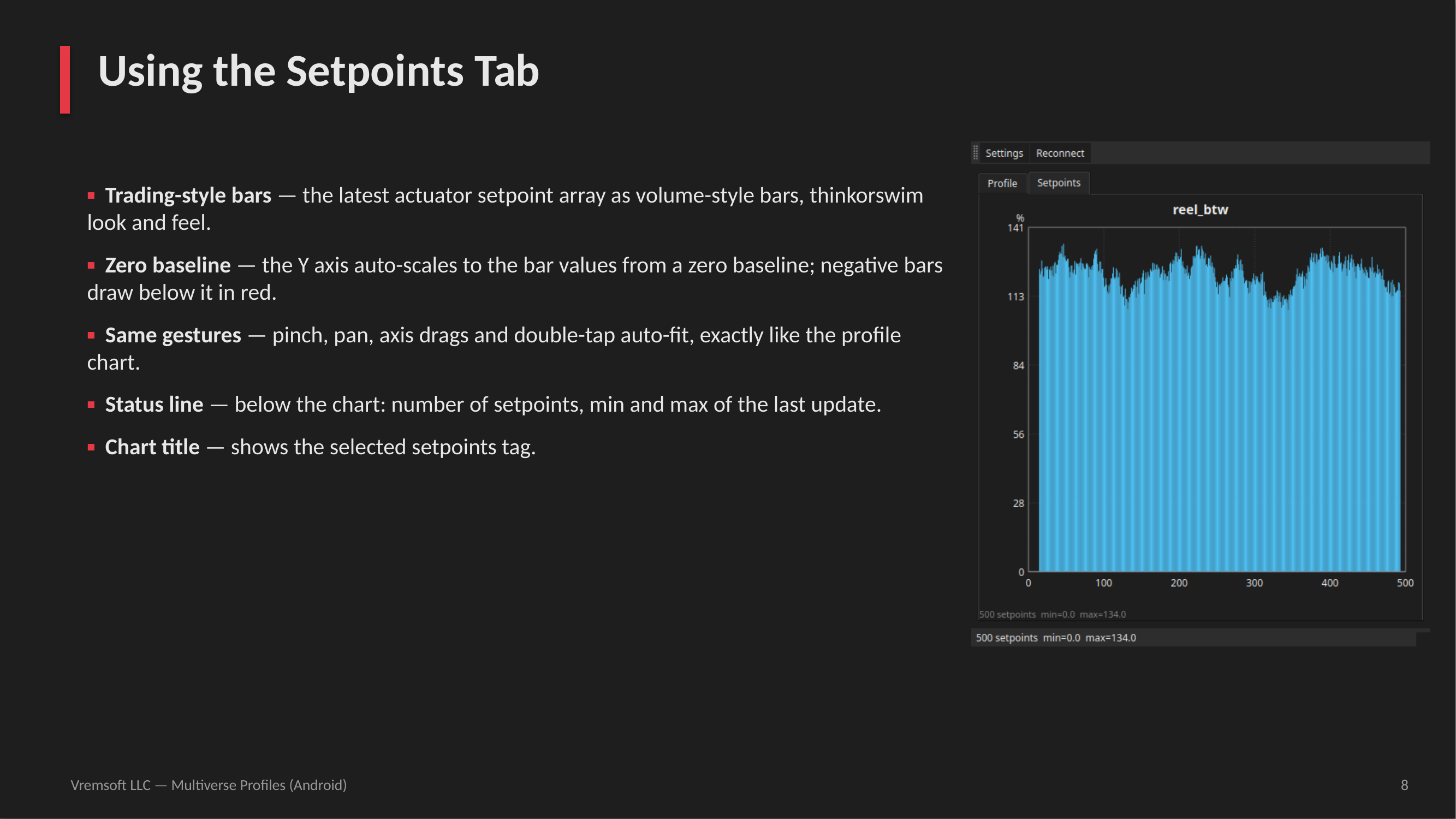
Using the setpoints tab
Slide 8 — Setpoints tab. Trading-style volume bars, zero baseline, red negative bars, same gestures, count/min/max status line.
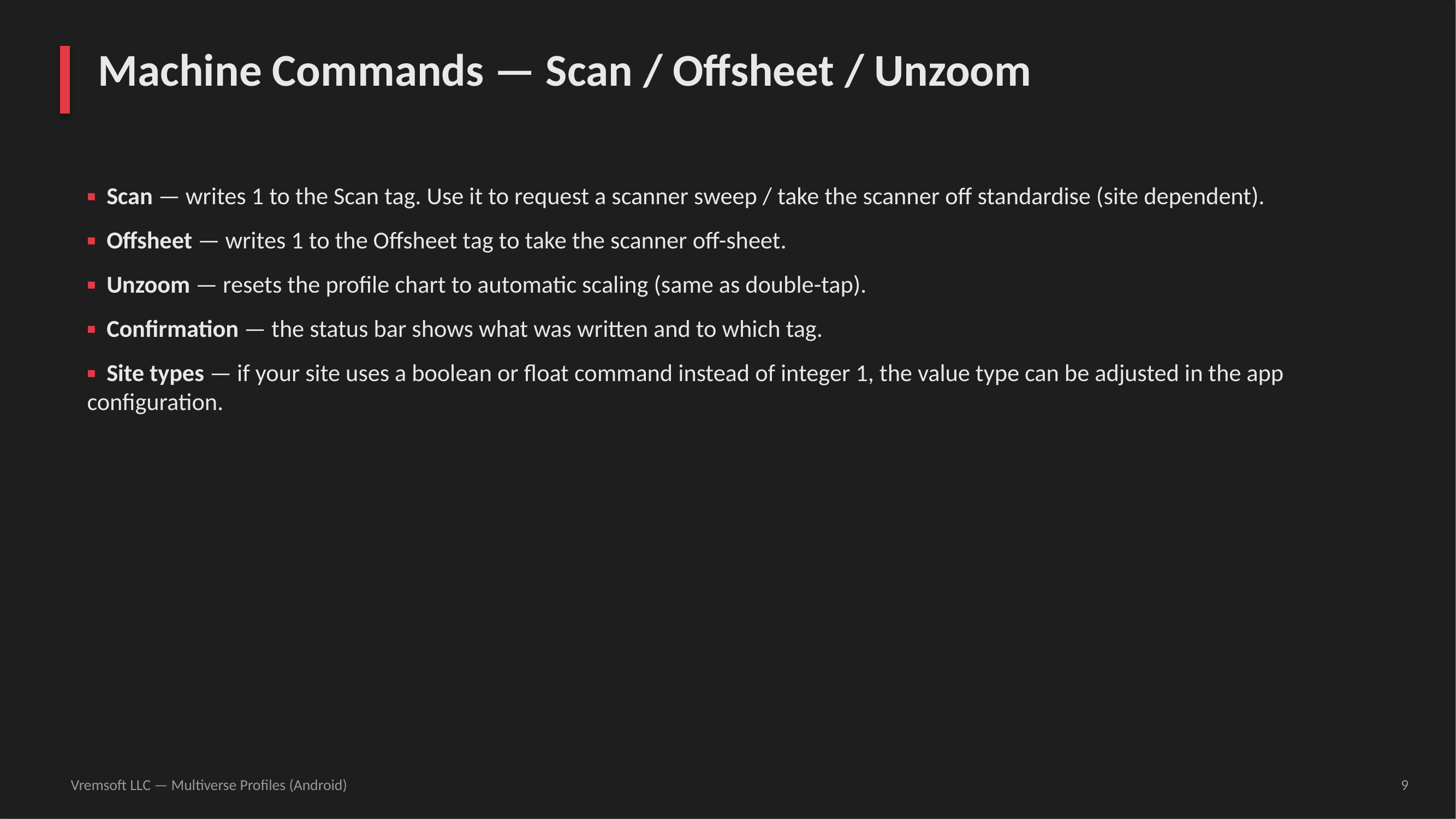
Machine commands — scan, offsheet, unzoom
Slide 9 — Machine commands. Scan and Offsheet write 1 to their tags; Unzoom resets the chart; status bar confirms each write.
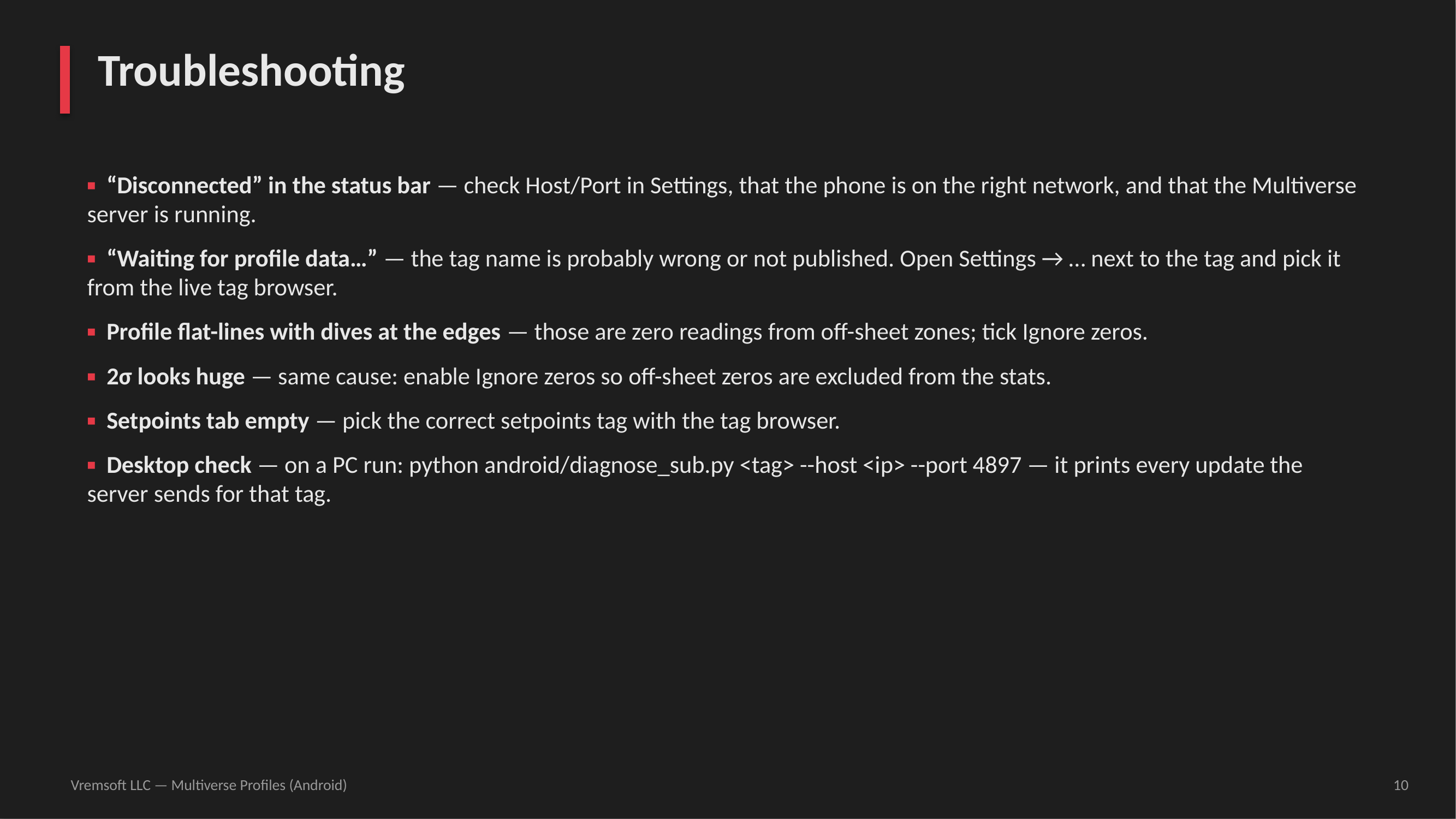
Troubleshooting
Slide 10 — Troubleshooting. Disconnected, waiting for data, edge dives, huge 2σ, empty setpoints, and the desktop diagnose tool.
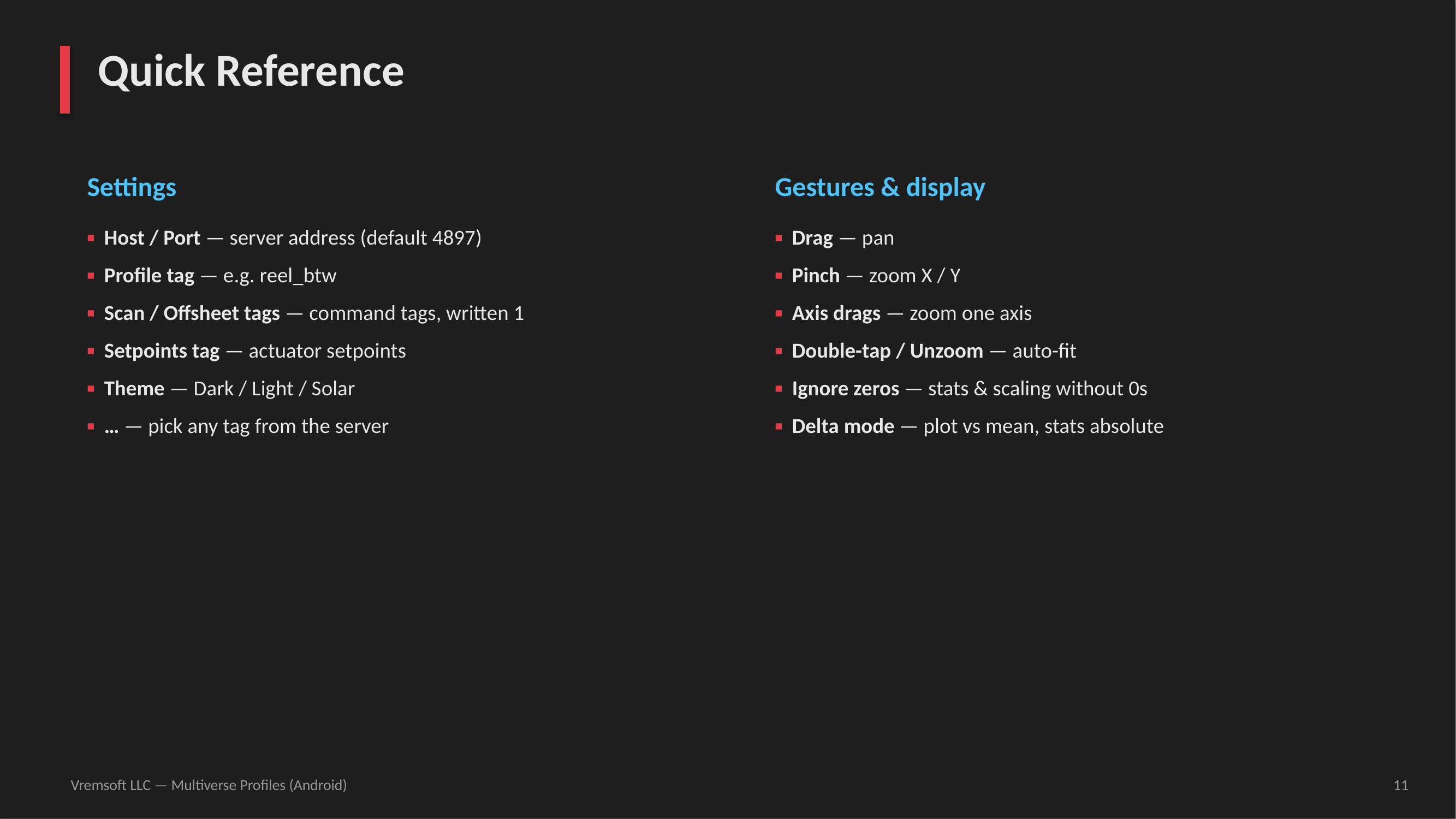
Quick reference
Slide 11 — Quick reference. Settings and gestures at a glance.